We have a product component which just display the product name as ‘Computer’, and when user click the Change product name button, we’ll update the product name to ‘Phone’.
it('should have name as Computer', () => { component.changeName(); fixture.detectChanges(); expect(component.name).toEqual('Phone'); });
Yes, it works, but, we don’t need to call fixture.detectChanges() here, because we are testing the component’s property name change directly, not the UI changes.
No, it doesn’t work, because, you call component.changeName() to change the product name, but you didn’t call fixture.detectChanges() to trigger the change detection and update the view. so the product name on page is still ‘Computer’.
We can call fixture.detectChanges() after component.changeName() to fix this issue.
The reason is because as, it’s a keyword in TypeScript, but it’s not a keyword in JavaScript. So the root cause is Jest cannot understand the TypeScript syntax. We need a preset to help Jest to understand TypeScript syntax. The ts-jest is the most popular one.
If you project is a pure TypeScript project, see here on how to config ts-jest.
If you project is an Angular project, Please use jest-preset-angular, see here for details.
3. jest: failed to cache transform results in: xxx/jest/jest-transform-cache.map, Failure message: ENOSPC: no space left on device, write
This is because Jest is trying to transform itself, so add the following to your jest.config.js file will resolve this issue. see here for details.
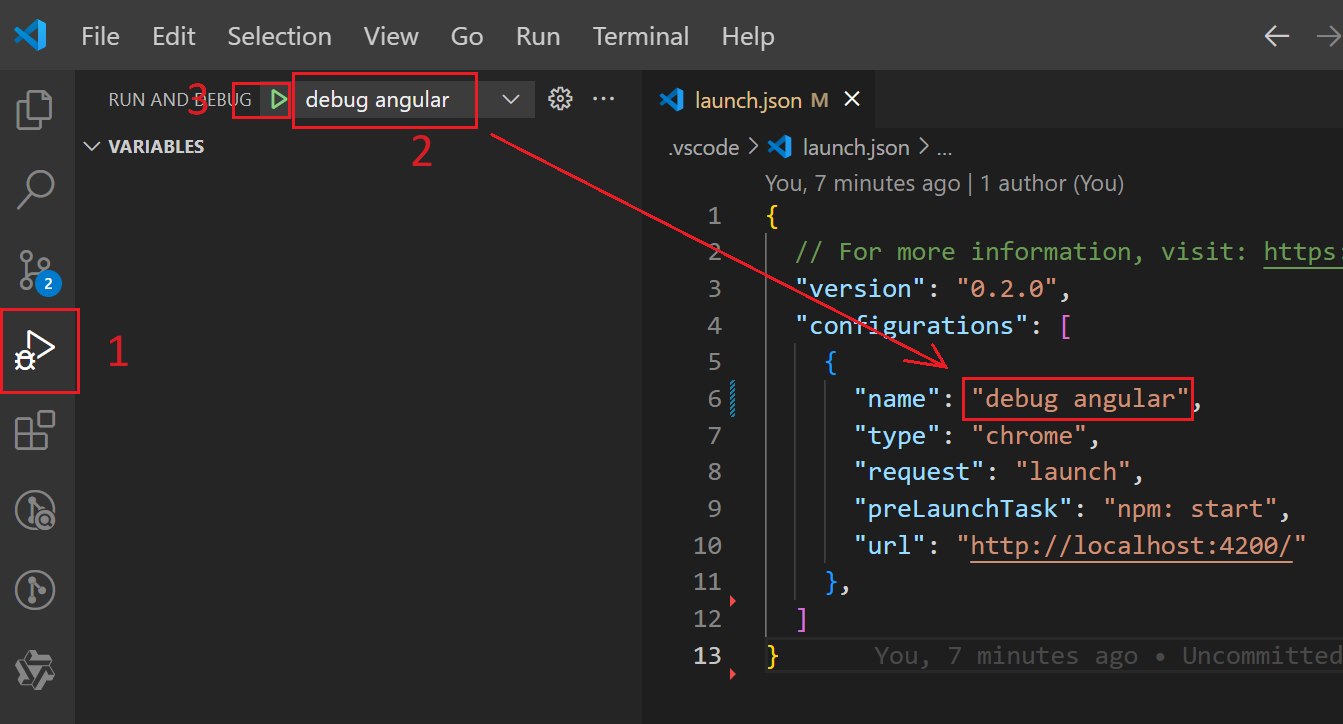
Click Run and Debug in VSCode’s left side menu. // number 1 on picture below
Select debug angular app in the dropdown list. // number 2 on picture below
Click the Debug icon or Press F5 to start debugging. // number 3 on picture below In this way, VSCode will open a new Chrome window and you can debug the Angular app in VSCode.
Launch without task file
If you don’t want to use task.json file, you can remove it and delete preLaunchTask in launch.json file. Then
Manually start the Angular app by npm start in terminal.
Click the Debug icon or Press F5 to start debugging in VSCode. In this way you need to manually open the browser and navigate to http://localhost:4200/ to debug the Angular app.
Browser
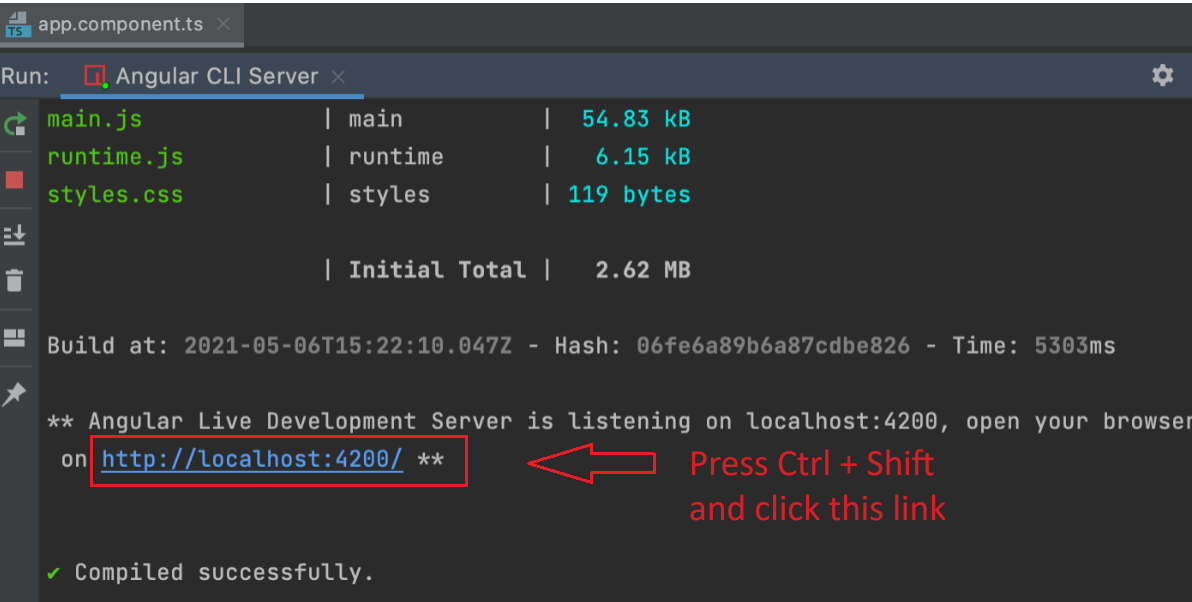
No matter you use WebStorm or VSCode, you can also debug Angular app in browser.
Run your angular app by npm run start or ng serve
Open the browser and navigate to http://localhost:4200/.
Press F12 to open the developer tools and switch to Source tab.
Set breakpoint in your source code in browser. see here for more details.
If you use webpack, the source file was in webpack://src folder.
If you use ESBuild + Vite, the source files were in src folder.
ERROR in src/app/product-home/product-home.component.html:1:1 - error NG8001: 'app-product-detail' is not a known element:
But If I remove the router for product, the error is gone, why? Because, I use ProductHomeComponent in app-routing.module.ts which in turn was used in file app.module.ts, But, when Angular compile template for ProductHomeComponent, it didn’t know where to find ProductDetailComponent. to solve this, import ProductHomeModule in app.module.ts like this:
1 2 3
imports: [
   ProductHomeModule
]
Then the error is gone. Because, ProductHomeModule has imports ProductDetailModule, so Angular knows where to find ProductDetailComponent.
Conclusion: If you wan to use a component from another module, you need to import the module which contains the component in the module where you use the component. You may use the component by selector in templates or in the router, both need to import the module which contains the component.
How to check if page is rendered by server or client
Open the page in Chrome browser.
Right-click on the page and select View page source.
Check the body tag, if the body tag is empty, it means the page is rendered in client side, the following page is a CSR page, since the body tag only contains <app-root></app-root>. that’s for the client side rendering.
// The Express app is exported so that it can be used by serverless Functions. exportfunctionapp(): express.Express { const server = express(); const serverDistFolder = dirname(fileURLToPath(import.meta.url)); const browserDistFolder = resolve(serverDistFolder, '../browser'); const indexHtml = join(serverDistFolder, 'index.server.html'); const commonEngine = newCommonEngine();
functionrun(): void { const port = process.env['PORT'] || 4000; // Start up the Node server const server = app(); server.listen(port, () => { console.log(`Node Express server listening on http://localhost:${port}`); }); }
run();
Update angular.json file.
Add the following in architect | build | options section.